2019. 7. 31. 01:32ㆍAndroid Studio
※ Please note that the writer of this article does not have any IT backgrounds or work experiences. So the contents are not going to try much effort on figuring out the meaning of every line
This is my first try for studying android studio with java. So along the way, I will focus on getting the concepts and basic functions/methods.
1. Download android studio and install it
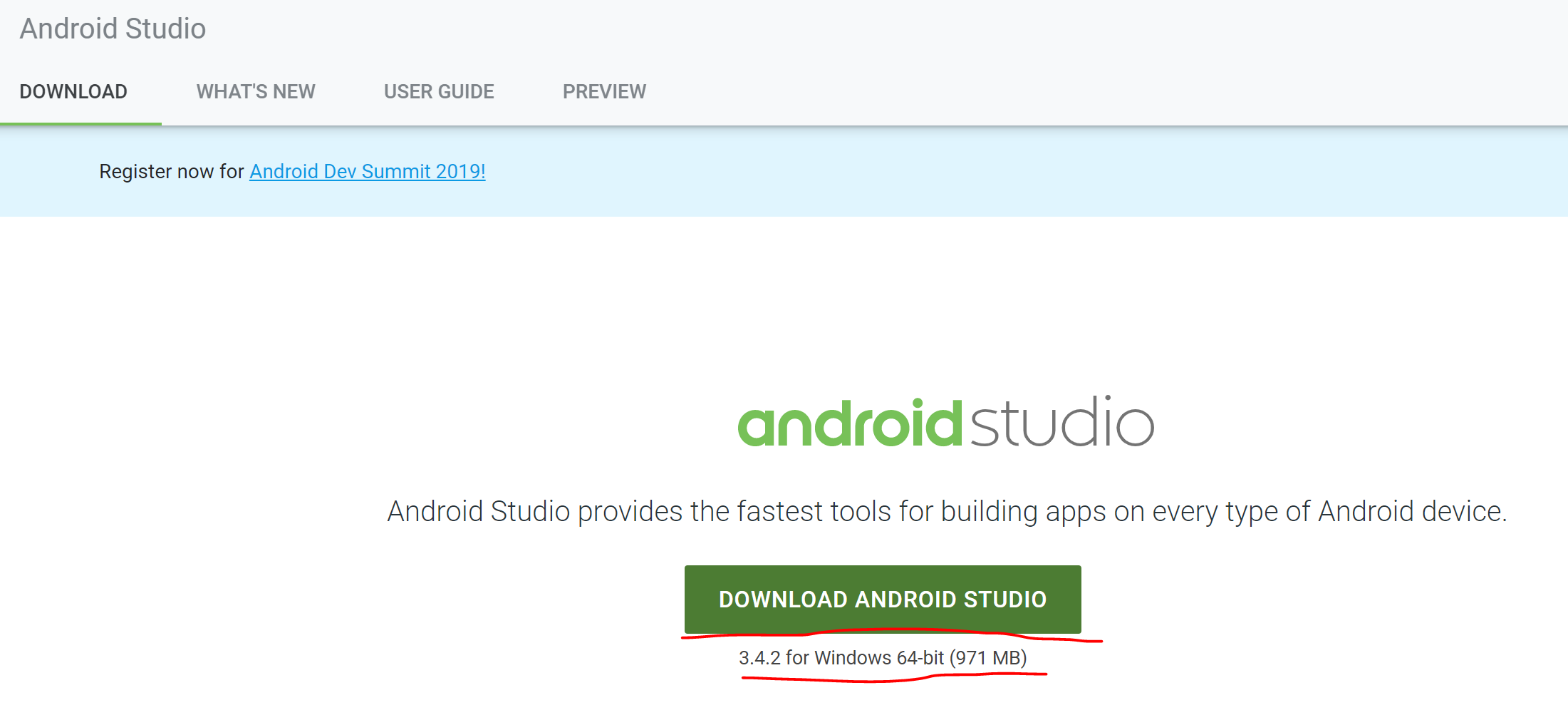
when you finish download and install it. There are a few things for you to decide while installing it. The books I have read recommended to set it "default" if you are a beginner.
2. Check the versions of Android
As a beginner, you might wonder weather you are using the same version of android with the book you refer to.
this is not crucial factor for studying android; you can skip this if you want

1) Go to settings from the "file" tab at the top (or press Crtl + Alt + S) -> Settings -> Appearance & Behaviour -> Updates :: check the Android studio version
2) Go to settings from the "file" tab at the top (or press Crtl + Alt + S) -> Settings -> Appearance & Behaviour -> Android SDK :: check the Android SDK version
3. Create a project and Hello world!
1) Go to file -> New -> click New Project to create a new project


You can use the name and the package name whatever you want. But try to make it SIMPLE for your own convenience in the future!
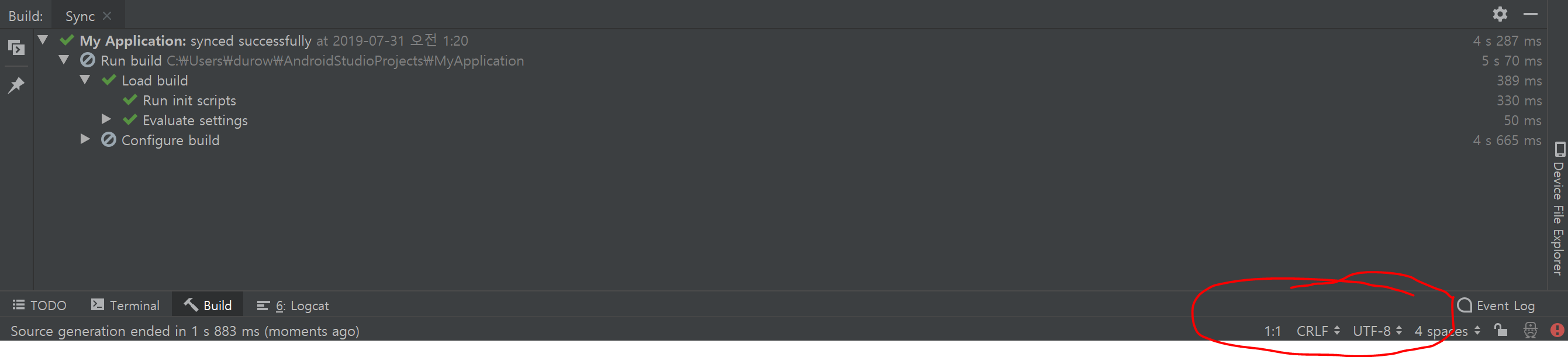
wait until Android Stuido do the configuring job for you.
and when it's done (by meaning this, when nothing processes on the red circle area from the picture above and "Sync" procedure tells you that "configure build")

you can run the proejct by clicking the green arrow-like triangle (or press Shift + F10)

AND here we have our first project!
NO????!!
The reason is that we haven't set up any Android Virtual Devices(so called AVD)
so we are going to set it up

you can click the AVD manager Button to set up an android virtual device
Click AVD Manager -> Create new virtual devices -> Pixel 2 -> Pie -> give any "AVD Name" you want
※ you can use other specs and versions of virtual device than pixel 2 and pie. This is just to share the same environment with me.
Run the project agian.
The things we discussed today were not really hard to follow, therefore it was a bit too much information for the first article. From now on, I will try to segment(hopefully atomize) topics more.